🧹 Text cleanup
Remove extra spaces tool
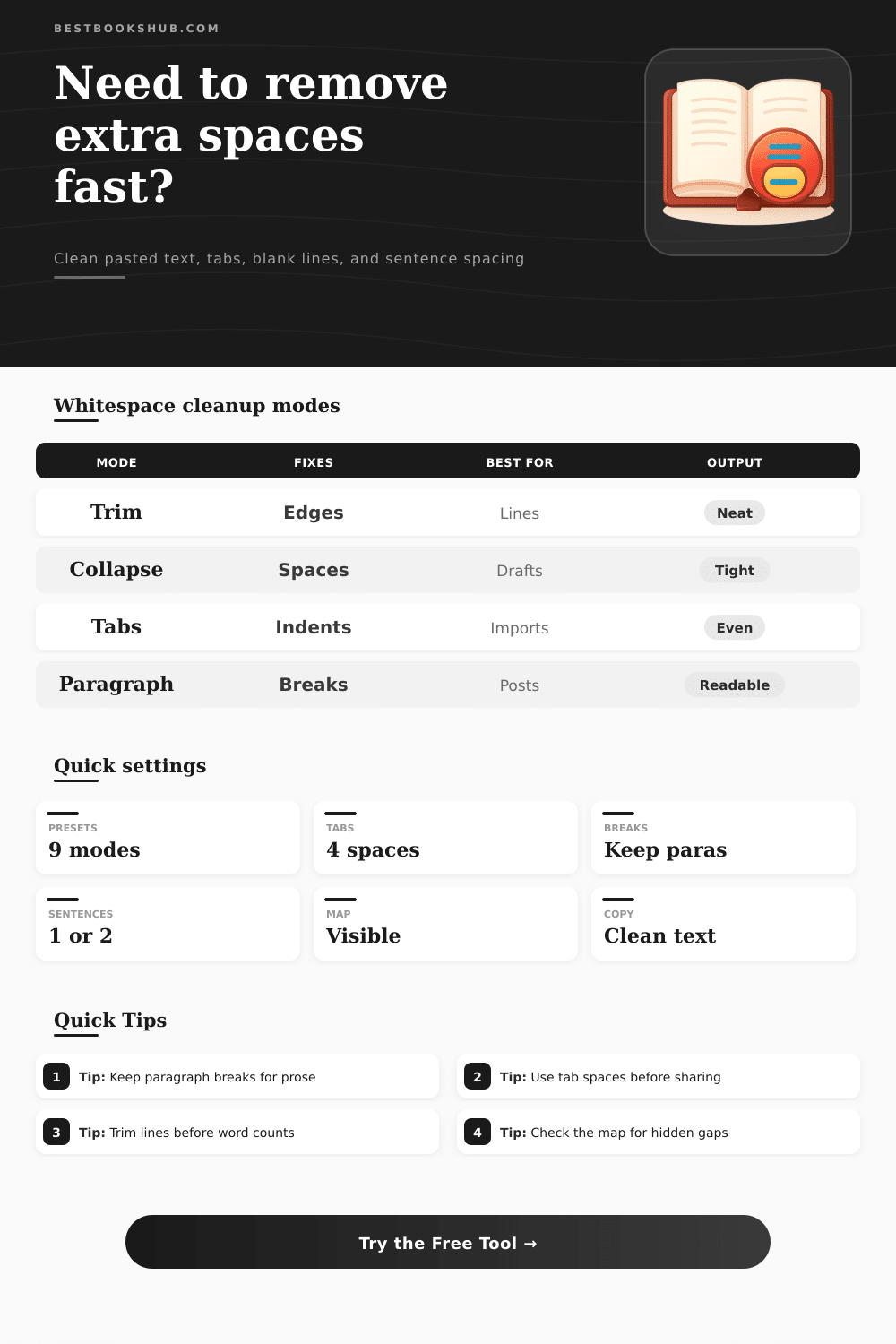
Collapse repeated spaces, trim each line, normalize tabs, preserve paragraph breaks, and preview hidden whitespace before copying clean text.
Choose a preset for common copy cleanup jobs, then adjust any control before running the tool.
| Whitespace type | Map symbol | Common source | Suggested cleanup |
|---|---|---|---|
| Regular space | · | Typing, copy paste, formatting | Collapse repeated runs unless alignment matters. |
| Tab character | ⇥ | Docs, code comments, spreadsheet exports | Convert to fixed spaces before sharing prose. |
| Nonbreaking space | NBSP | Web pages and rich text editors | Normalize to regular spaces for search and wrapping. |
| Zero-width mark | Hidden | Copied web text and document imports | Remove when preparing plain text or metadata. |
| Line break | ↵ | Email, PDF copy, form exports | Preserve, merge, or normalize based on destination. |
| Preset | Space handling | Paragraph handling | Good destination |
|---|---|---|---|
| Manuscript paste | Collapse to one | Preserve paragraph breaks | Draft editor or word processor |
| Newsletter draft | Single sentence spacing | Limit blank lines to one | Email builder or CMS block |
| CSV notes field | Collapse all runs | Merge to one paragraph | Spreadsheet cell or database field |
| Poem line trim | Preserve interior spacing | Preserve paragraph breaks | Poetry draft or line-based text |
| OCR scan cleanup | Reduce 3+ spaces | Limit blank lines to one | Scanned passage cleanup |
| Sentence mode | Example after period | Use when | Watch for |
|---|---|---|---|
| Single space | End. Next | Modern web, metadata, blog copy | Abbreviations may look like sentence ends. |
| Double space | End. Next | Drafts that require classic spacing | Can inflate character limits and snippets. |
| Preserve | No change | Legal, poetry, or source-sensitive text | Existing inconsistencies remain visible. |
| Keep sentence exception | One or two | Cleaning lines while respecting sentence gaps | Pair with paragraph preservation. |
| Destination | Recommended settings | Why it helps | Final check |
|---|---|---|---|
| Book notes | Trim lines, keep paragraphs, single sentences | Keeps notes readable without hidden gaps. | Scan paragraph breaks before copying. |
| Meta description | Merge lines, collapse all spaces, remove hidden marks | Prevents invisible characters from wasting limits. | Check final character length. |
| Email draft | Normalize tabs, limit blanks, trim right edges | Removes reply-chain spacing without flattening tone. | Confirm quoted text still separates. |
| Spreadsheet field | One paragraph, tabs to one space, trim both sides | Keeps imports clean and searchable. | Watch commas and line breaks. |
| Poetry lines | Preserve interior spacing, trim right only | Protects deliberate spacing and line rhythm. | Use whitespace map carefully. |
DISCLOSURE: This post may contain affiliate links, meaning when you click the links and make a purchase, I receive a commission. As an Amazon Associate I earn from qualifying purchases.
Often, the text that you find in a project contains invisible baggage. The invisible baggage consist of extra spaces, tabs, and line breaks in the text. These invisible spaces, tabs, and line breaks is typically introduced when pasting text from a web page, or an email chain, or a scanned document.
These extra spaces, tabs, and line breaks in text are problematic because they can increase the character count of a text and cause errors in the formatting of that text. Invisible baggage can cause database search result to contain errors, and it can make a piece of text that is still a draft for an author to look unorganizedly. Manually fixing these invisible spaces and line breaks can be difficult, especially within long documents.
Clean Hidden Spaces, Tabs, and Line Breaks
Thus, it is to your advantage to use a specific tool to fix invisible baggage in a project. The problem with invisible baggage is that it isnt always immediately obvious to a reader what the invisible baggage is. Invisible baggage can take many form.
For example, double spaces after periods are common in text, but they can cause issue in fields that have character limits. Tabs can cause issues in content management system. Nonbreaking spaces can prevent text from wrapping around to the next line in text editors.
The text might be formatted correctly in the application that was used to create the text, but the formatting can be inappropriate in another application. One strategy for dealing with invisible baggage is to use the find-and-replace function in a word processor. However, the find-and-replace function is likely to provide incorrect results when attempting to deal with invisible baggage.
For instance, using find-and-replace to locate and replace all instance of double spaces might also remove spaces between words that the author original and intentionally typed. Similarly, removing all tabs in a text might destroy the structure of lists within the text. It is essential to decide what a text need to become before a user uses the find-and-replace function.
The tool provides specific settings that allow a person to decide how invisible baggage should be treated. A user can select how the tool treat repeated spaces within text. Should the tool convert single spaces between sentences to double spaces, or should it leave them as they are?
Should the tool convert tabs into space, or should it remove all tabs from text? There are separate settings for treating paragraph breaks, line trimming, and hidden characters. Furthermore, the tool displays a visible map of the text that allow the author to see the invisible spaces, tabs, and line breaks.
A person cannot always see where invisible character are in the text alone. Because different type of text contain different invisible baggage, specific settings must be used to clean those types of text. For instance, the invisible baggage within text that comes from a CSV field might need to be collapse into one paragraph.
Other text, such as academic notes, might need invisible baggage to be reduced while preserving paragraph breaks. Text that was scanned might require invisible baggage to be reduced if there are three or more space between words. To simplify the invisible text cleaning process, the tool includes presets for these settings.
Using this tool will lead to consistency in a project. Using the same settings, a person can clean ten lines of text, or it could be used to clean ten page of text. Furthermore, the tool displays a breakdown of the changes that will be made to a text.
For instance, how many characters will be removed? How many space will be collapsed into one space? How many lines will be trimmed to remove gap in the text?
This breakdown is useful for deciding if invisible baggage has been successfully removed from text. Eventually, a person will become accustomed to the types of invisible baggage that they recieve from specific source. For example, many website insert nonbreaking spaces in text content.
Similarly, email chain often use tabs to format text. Recognizing these types of invisible baggage will allow the author to quickly choose the appropriate preset within the tool. Furthermore, choosing the appropriate preset will eliminate the need for a person to manually fix invisible baggage in text before sending it to its destination.
By ensuring that text is cleaned before it is sent, problem will be prevented in search index for databases, character-limited fields, and more. Thus, text cleaning is a process that should of been included in every authors text workflow.