@ Text symbol analyzer
At symbol counter
Paste prose, emails, social handles, metadata, or code-like notes to count @ marks, classify their use, find crowded lines, and measure symbol density.
The calculator scans literal @ marks, then separates likely email addresses, social handles, metadata keys, code annotations, and loose symbols.
DISCLOSURE: This post may contain affiliate links, meaning when you click the links and make a purchase, I receive a commission. As an Amazon Associate I earn from qualifying purchases.
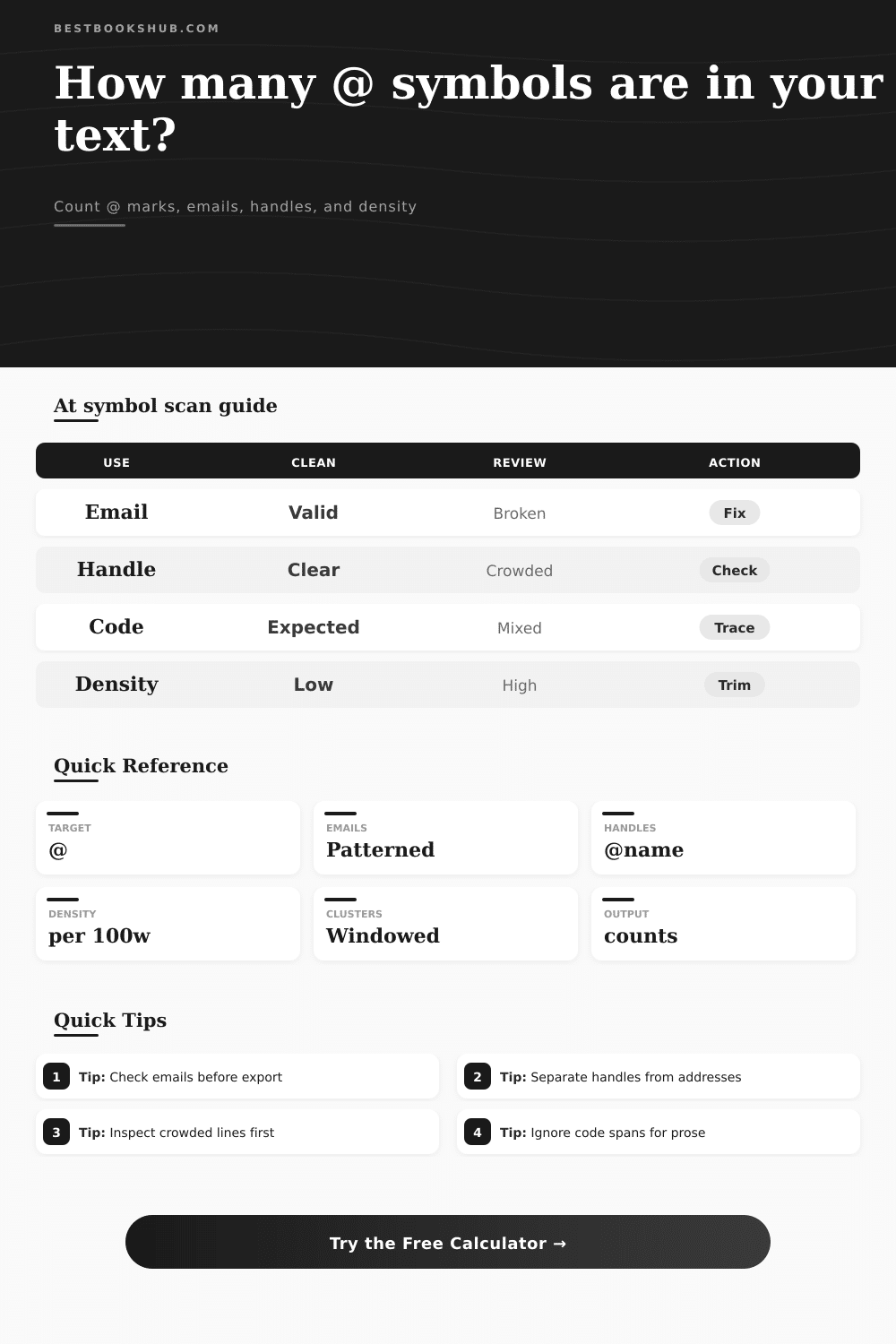
Use the tables to interpret @ density, likely context, address health, and cleanup priority in editorial text or exported notes.
| Density band | @ per 100 words | Typical source | Review cue |
|---|---|---|---|
| None | 0 | Plain prose | No symbol review needed. |
| Light | 0.1-1.5 | One contact or handle | Confirm the symbol is intentional. |
| Moderate | 1.6-4.0 | Contacts, captions, metadata | Check whether addresses and handles are mixed. |
| Heavy | 4.1+ | Exports, code, directories | Inspect crowded lines and loose symbols. |
| Context | Pattern shape | Calculator signal | Common cleanup |
|---|---|---|---|
| Email address | [email protected] | Email-like use | Check missing dots, spaces, and duplicate @ marks. |
| Social handle | @readername | Handle-like use | Check punctuation attached to the handle. |
| Metadata tag | @review or @chapter | Metadata use | Keep tags consistent across exported notes. |
| Code annotation | @media or @decorator | Code-like use | Use code span handling when auditing prose. |
| Email cue | Clean example | Problem example | Result impact |
|---|---|---|---|
| Single @ | [email protected] | name@@example.com | Extra symbol becomes loose. |
| Domain dot | [email protected] | mail@site | Strict mode may reject it. |
| No spaces | [email protected] | a.b @ press.net | Broken parts are counted separately. |
| Word edges | <[email protected]> | to@ site .com | Context detail will flag review. |
| Review priority | Line signal | Cluster signal | Suggested check |
|---|---|---|---|
| Low | One line hit | Peak 1 | Verify the one visible context. |
| Medium | Several line hits | Peak 2-3 | Compare email and handle counts. |
| High | Many line hits | Peak 4-6 | Review copied exports and metadata. |
| Audit | Dense or broken text | Peak 7+ | Inspect line details before publishing. |
That little character in your email address is the one we call “at” symbol. It’s not just punctuation. It’s a signal and sometimes that signal is noisy.
Sometimes you’ve got a bunch of real emails, or social media handles, or metadata tags, or stray symbols used by some coding language. To our eyes, those all appear alike. But to a database, they’re problems. And you can’t fix what you can’t measure.
Why You Should Count @ Symbols
First you have to count the symbols. The calculator do that for you. Then you can sort the useful from clutter. It’s one thing to know the number; it’s another to know what type of thing it is. That’s why this tool differentiates between a handle-like pattern different than something that looks like an email address.
Email addresses are fragile: If you misspell it by doubling up on a character or forgetting to include a dot then it won’t work. A handle is more resilient, but still has to be treated different than other characters around it (otherwise you’ll get weird formatting problems in your spreadsheet or CMS).
Then think about the density. The number of times the @ symbol appears in one hundred words measures something about the content right away: zero means its probably a novel; a slow but even rate may indicate a reference to coding language, such as a tech manual; if it’s a contact list that was scraped from somewhere else, there will be a spike. Usually when density is high, it points to clusters of issues, merged data streams or simply duplicate entries. If you get a high density, those are where you’ll find the clustered lines, and there’s your error hiding.
The at sign has a different meaning in different contexts. It acts as a variable prefix or decorator in code. It is a citation in prose. You need to change setting based off context. We do that through scan profiles that describe what kind of text this is. Are you auditing a manuscript? Don’t scan code spans. Are you cleaning up a mailing list? Please use strict email validation! The settings modifies the lens; half the battle is selecting the proper lens.
When was the last time you copied something from a site? It might have been a bio. You cut and pasted the email, the name, maybe a twitter handle … And what else did you pick up? It could be a stray symbol that was part of a broken link or some metadata that you didn’t know existed.
These extra bits is slipped into your finished product without any kind of quick check. Then when it comes time to send this list of emails, half of them bounce because you included a bunch of extra characters in their address. Or maybe you notice all these tags around your search result that don’t go anywhere, just cluttering up your results.
Looking through the reference tables will give you an idea of what is normal and what isn’t. Light? That’s probably one or two contact. Heavy? Well, you’ve got some data you want to check by hand since it was most likely exported from somewhere else. High numbers aren’t shameful. Assuming it makes sense in context. Just make sure each symbol has a reason for existing.
An at sign floating around without a tag, handle, or email is simply noise. It doesn’t add anything except clutter. But ultimately, it’s all about trust.
Do you trust the contact info you’re putting in there? Do you trust the metadata you use to organize your messages? When you break down the symbols into what they do, you go from “I wonder” to “I know.” You go from asking, “Is that a tag?” to knowing. Or a typo?” to “Oh, I’m tagging myself here.” You discover… And then you can fix it. Because now you know.
So look at your own text. Run the scan on it. See what those loops actualy mean. Maybe it’ll save you from a pretty mucked-up inbox.