🔍 Typography mark scanner
Smart quote detector
Paste prose, dialogue, metadata, citations, subtitles, or CMS text to identify curly quotes, straight quotes, apostrophes, primes, guillemets, pairing issues, and export cleanup choices.
Load realistic samples from fiction dialogue, review copy, metadata fields, foot-inch measurements, OCR output, citation exports, multilingual typography, and plain-text controls.
| # | Mark | Code | Family | Count | First line | Suggested check |
|---|---|---|---|---|---|---|
| Run the detector to summarize quote marks. | ||||||
| Line | Double opens | Double closes | Straight dbl | Single marks | Flag | Preview |
|---|---|---|---|---|---|---|
| Run the detector to see line-level quote pairing. | ||||||
| Rule | Smart left | Smart right | Apostrophe | Prime | Best use |
|---|---|---|---|---|---|
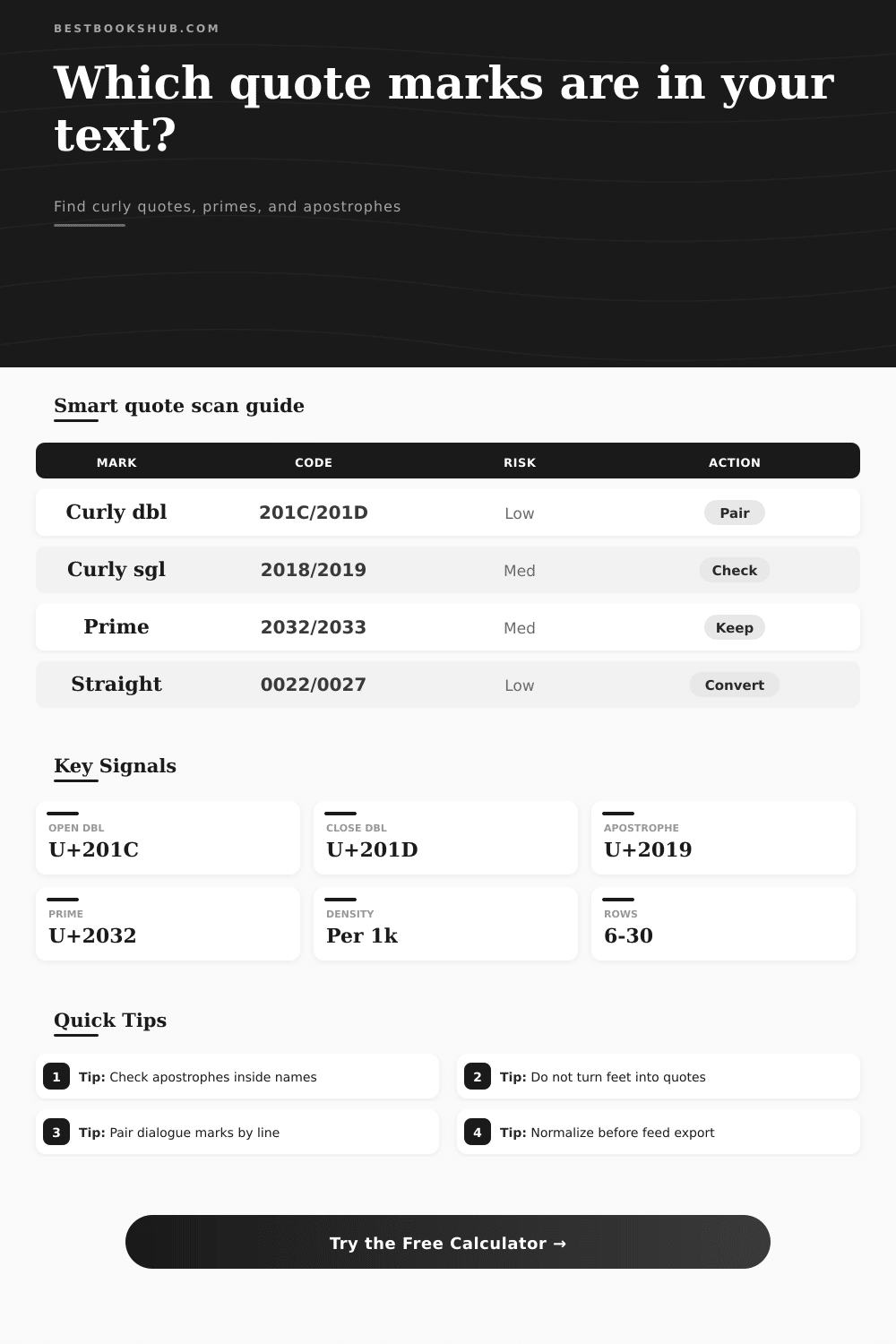
| Preserve smart typography | “ | ” | ’ | ′ | Finished prose, print layouts, EPUB text |
| Strict ASCII fallback | " | " | ' | ' | Plain feeds, slugs, code fields, simple exports |
| Measurement aware | “ | ” | ’ | ′ | Heights, minutes, seconds, maps, dimensions |
| Visible audit labels | [LDQ] | [RDQ] | [APOS] | [PRIME] | Manual proofing before bulk replacement |
| Character | Unicode | Name | Common source | Detector note |
|---|---|---|---|---|
| “ | U+201C | Left double quotation mark | Opening dialogue and quoted titles | Should usually balance with U+201D. |
| ” | U+201D | Right double quotation mark | Closing dialogue and quoted titles | Can be confused with inches in copied notes. |
| ‘ | U+2018 | Left single quotation mark | Nested quotes or UK-style dialogue | Rare inside contractions. |
| ’ | U+2019 | Right single quotation mark | Apostrophes, contractions, closing singles | Correct for most English apostrophes. |
| ′ | U+2032 | Prime | Feet, minutes, coordinates | Keep for measurements instead of curly apostrophe. |
| ″ | U+2033 | Double prime | Inches, seconds, coordinates | Keep for dimensions instead of closing quote. |
When you copy text and paste it somewhere else, the punctuation seems out of whack. Maybe the quotes face opposite way. Or maybe they appear as tiny commas rather than those curvy things called quotes. Don’t blame your word processor; it’s just that there are multiple ways to type stuff out there, and they don’t always gets along.
That’s where the calculator thing comes in. It reveals these invisible characters for you so you can adjust them before they screw up your document formatting or throw off your programming code.
Why Punctuation Can Cause Problems
Here’s why: Smart quotes hail from the days of printing. Since the open and close marks looked better on paper, printers used special little metal pieces to make them. When computers arrived, they stuck with straight apostrophe and quote because keyboard was simple. Nowadays, most word processors automaticly convert straight marks to curly ones, making the document more readable, but also causing trouble if you export that text.
Why? Curly quotes is directional; in other words, an opening quote isn’t the same character as a closing one. Mixing these up results in what appears to be a broken sentence. For instance, it will scan for certain Unicode characters like U+201C, which is the left double quotation mark. It will also scan for U+201D, which is the right double quotation mark.
Or it’ll check for apostrophes versus prime marks. Why? Because prime marks are not apostrophes. Those are minutes and seconds, or feet and inches. And if you turn a measurement of say, six feet two inches into smart quotes, technicaly the text becomes six feet two closing quotes. This confuses things. So the detector differentiates between those kinds of character so that you don’t accidentally screw up your information.
You can have it just scan for double quotes, but if you’re working with text in more than one language, you can widen the search to include primes and even guillemets.
The second error lies in quotes paired together. Quotes need to match. Dialogue requires a match between opening and closing quote marks. A mismatch indicate you missed a character somewhere in a paragraph. The calculator flags this imbalance at the line level. It doesn’t simply sum up all the marks in a document. Instead it checks each line for local balance: Are the quotes balanced on this line? This helps when reading long blog posts or manuscripts. You can get tripped up by typos where final count looks good, so you think your quotes are ok. But there’s some mismatched lines which the detector highlights. Humans will trust the total count while ignoring the local line-by-line audit.
Sometimes it’s not clear which is correct: context matters. For example, when formatting text for display on a web site, you might wish to convert smart quotes to straights again so they work with a simple code feed or older system. The cleanup preview displays your text as it would appear post-change. So it swaps out the curly marks for straights or labels the characters to make it easier to check later. That way you don’t accidentally replace a perfectly good apostrophe in somebody’s last name (O’Neill) with a straight one that’ll look ugly.
Before you swap out these marks you should of know what each mark does. That’s especially true with OCR scans. The software reads the words (optical character recognition), but sometimes it gets confused between a closing quote and an apostrophe or a prime mark. That’s where the detector comes in: It will display the code points so that you know which one you need to change. Sometimes when scanning, it’ll read both a prime and quote in the same measurement field. Manually edit the prime marks out and leave the quote marks as they are. A small step, but it prevents hours of proofing work.
It’s about consistency. Use a single encoding throughout your text. Don’t combine two or more different kinds of character sets. If you’re writing a book, uploading something to a CMS, cleaning up data for a database, whatever it is: the marks must function consistent.
So where do you begin? That’s where the reference table comes in (it’s on the page). By looking at it, you’ll be able to learn to spot problem characters by sight. From there, it will become routine. Soon you won’t know what you’re fixing; it won’t just be typos. It will be making sure that your text stays intact from creation to publication.