🔎 Replacement desk
Find and Replace Tool
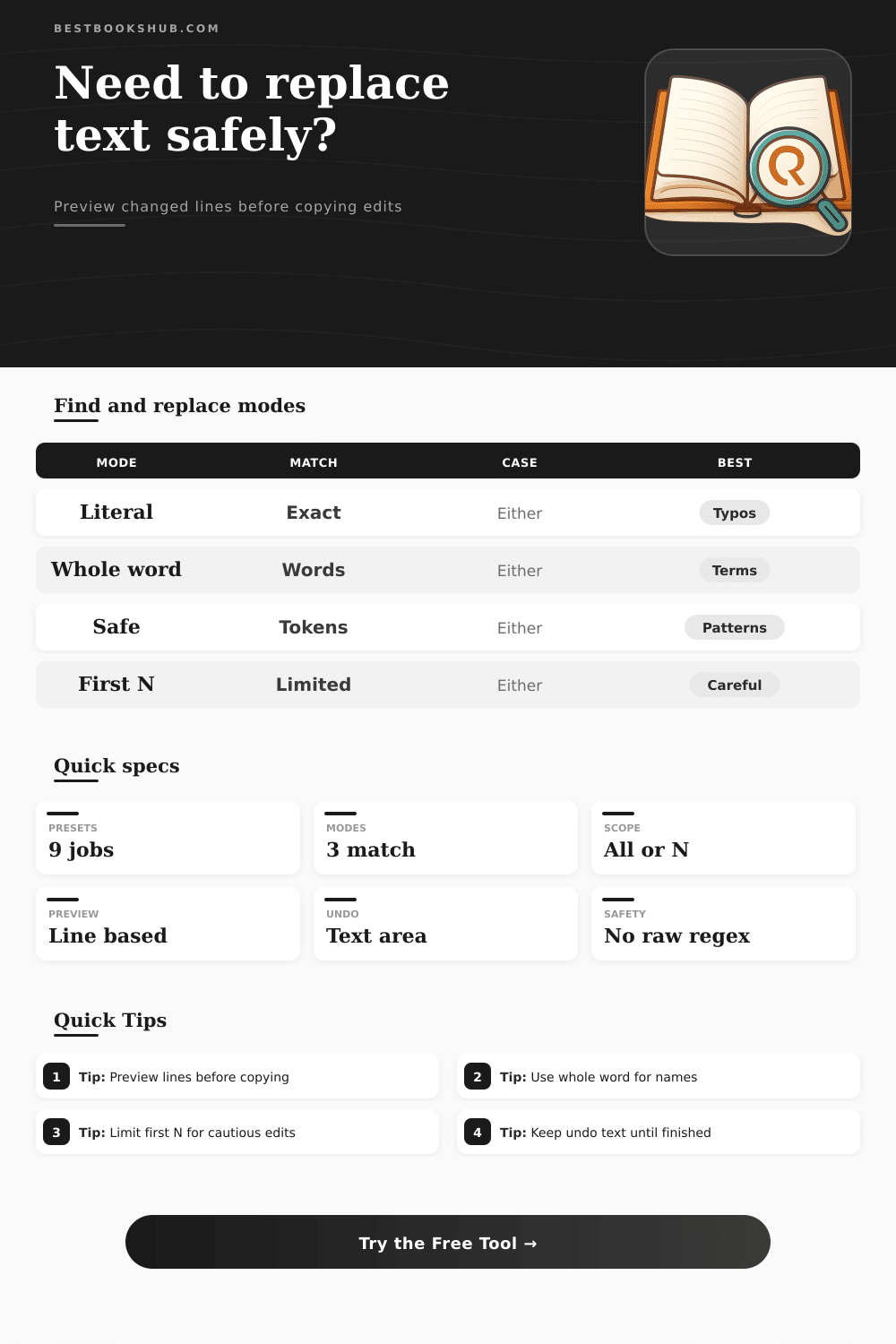
Paste text, choose literal, whole-word, case-sensitive, or safe pattern matching, then replace all matches or only the first N while previewing changed lines and keeping an undo copy.
Load a realistic editing scenario, then adjust the match rules, replacement limit, and preview size before copying the result.
Replace all
DISCLOSURE: This post may contain affiliate links, meaning when you click the links and make a purchase, I receive a commission. As an Amazon Associate I earn from qualifying purchases.
Best for consistent terms, repeated metadata labels, and known typos throughout a short draft.
First N only
Best when the first few mentions need updating but later mentions may have a different meaning.
Whole word
Best for names, terms, and book-format labels that should not alter longer words.
Safe pattern
Best for controlled patterns such as years, catalog codes, issue numbers, and labels.
| Mode | Find example | Matches | Does not match |
|---|---|---|---|
| Literal exact text | Part One | Part One | part one when case is on |
| Whole word literal | book | book | notebook, booking |
| Case-sensitive | ARC | ARC | arc |
| Regex-like safe pattern | Vol [digits] | Vol 12 | Vol Twelve |
| Token | Meaning | Example find | Example match |
|---|---|---|---|
| [digits] | One or more digits | Chapter [digits] | Chapter 12 |
| [letters] | One or more letters | Part [letters] | Part IV |
| [word] | Letters, digits, underscore | ID [word] | ID A12_B |
| [space] | One or more spaces | Book[space]Club | Book Club |
| * | Any text on one line | Note: * | Note: revise |
| ? | One character | Vol ? | Vol 2 |
| Scope | Replacement count | Use case | Check before copy |
|---|---|---|---|
| Replace all matches | Every match found | Fixing a repeated typo across notes | Preview line count and total matches |
| First N matches | Stops after limit | Changing only early mentions | Confirm N matches the intended passage |
| Safety cap | Stops scan display | Very long pasted text | Raise cap only if text is trusted |
| Undo text | Original source | Manual recovery after copying | Keep it until final text is accepted |
| Editing job | Mode | Scope | Preview focus |
|---|---|---|---|
| Rename a character | Whole word | Replace all | Look for possessive names |
| Update a subtitle label | Literal | First N | Check headings only |
| Normalize catalog years | Safe pattern | Replace all | Verify every matched number |
| Change a class term | Whole word | Replace all | Avoid longer word fragments |
| Fix metadata separators | Literal | Replace all | Confirm visible punctuation |
Find and Replace lets you find and replace metadata, code, labels, words, and more. It include a first-N limit, match count, change-line preview, controlled matching, and Undo text.
Then, suddenley, you realize you must swap out “Chapter One” for “Part One,” in all cases. Or that a character called Nora is now known as Mara. This is tedious work, and worse yet, it’s perilous work, with one stray comma or unintentional edit within a longer word, you risk ruining your document entireley.
How to Use Find and Replace Safely
This is why writers should of be more honest about how important a smart find and replace function are to their workflow. It is not just about saving time. It’s about precision; being able to look at precisely what you’re changing before you change it.
Where things get tricky is selecting the proper match type. Literal search will catch any character string typed. This is fine when looking for something clearly labeled like “ISBN:”, but it can cause chaos when trying to replace a short word that exists inside longer ones. Using whole-word mode respects boundaries here, so you don’t have “book” getting inserted into “notebook.” A small difference, but it saves you hours of cleaning up later.
Then there’s case sensitivity. If you’re changing speaker tags in dialogue, acronyms, or other headings, turning this on ensures that “ARC” doesn’t touch “arc.” Turning it off for more general terms just save you from doing the same thing over again. Which is why safe patterns are such a smart middle ground: rather than making you memorize complex regular expressions, they allows you to work with basic tokens such as [letters] or [digits]. All of a sudden, you’re able to capture all instances of “Chapter 9” and “Vol 12” in one go without having to touch “Volume Twelve”.
People overlook this. The tool isn’t replacing blindly. This is giving you the power to describe what it is that you’d like to change.
Match type isn’t all that matters; scope decisions is important too. If the term appear consistently in your draft or notes, you can replace all instances at once. On other occasions, however, you may only want to update earlier references. When context changes, limiting to initial matches leaves the rest of section alone. This is where preview of changed lines comes into play. You know precisely what sentences are going to change, and you have time to identify potential surprises beforehand, without even touching your final copy.
Having a version you can undo eliminates all fear. Paste, do the thing, restore if necessary. The workflow are calm.
But these are the little choices we writers, researchers, and editors make all the time. The code for a book in your catalog may have just changed its naming rules; the reading notes may be littered with now-obsolete hashtags; the bibliography could rely on en-dashes different than colons. They’re all slightly different but based off the same logic.
Understand what exactly you want to match. Determine the scope and whether it should apply throughout. Check the impact, then go. Omit one step and your little mistakes accumulates. Replace should always be treated surgicaly (not mechanically). Spend a half minute thinking: Does it appear in compounds? Does case mean something? Might I have to treat subsequent uses differently? It’s those few moments of reflection that turn good final drafts into even better final drafts that need no further review.
In the end, however, no good find and replace process will eliminate your judgement. It merely provides it with more and quicker information. You’re still making the call about what to change. The tool ensures those calls happen exactly where you want them, without interfering with your text or wasting your afternoon on something other than actualy writing.