💬 Subtitle readability
Subtitle characters per second calculator
Paste SRT, WebVTT, transcript-style, or plain subtitle cues to measure duration, character load, CPS, CPL, and readability flags.
| Speed band | CPS range | Typical use | Review signal |
|---|---|---|---|
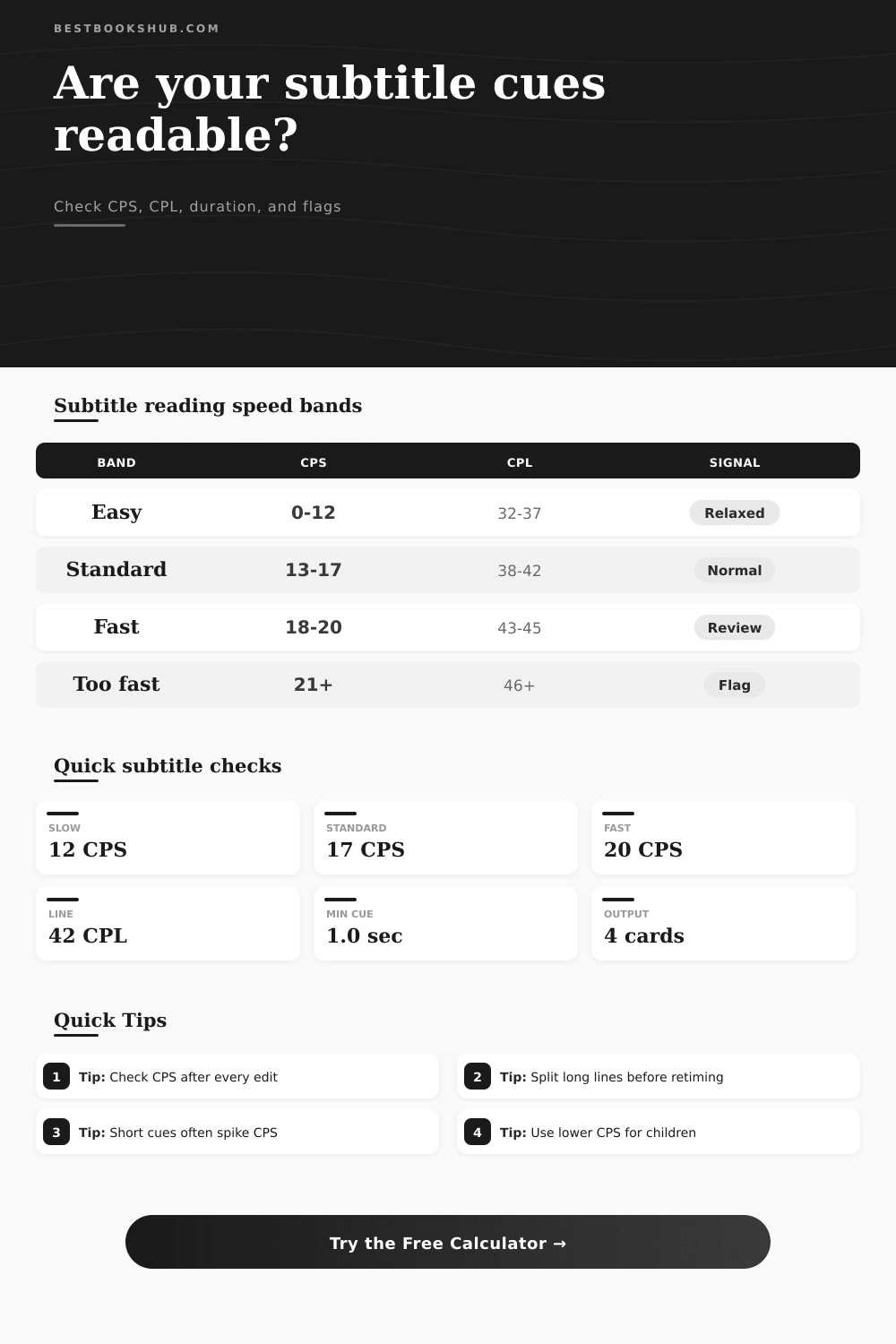
| Very easy | 0 to 12 CPS | Children, captions with dense visuals, slow narration | Usually comfortable if timing is not too short |
| Standard | 13 to 17 CPS | General film, interviews, online lessons, drama | Good working zone for most subtitle edits |
| Fast | 18 to 20 CPS | Rapid dialogue, sports clips, tight news segments | Review line breaks and exposure time |
| Too fast | 21 CPS or more | Overloaded cues, short flashes, packed translation notes | Split, shorten, or retime before delivery |
| Layout check | Common value | What it catches | Calculator flag |
|---|---|---|---|
| Single-line CPL | 32 to 37 chars | Comfortable short captions and mobile playback | Flagged when above selected CPL |
| Two-line CPL | 38 to 42 chars | Standard two-line subtitle blocks | Longest line checked per cue |
| High CPL | 43 to 45 chars | Wide screens, fast adult reading, dense material | Review if combined with high CPS |
| Line count | 1 to 2 lines | Three-line cues can hide picture detail | Any cue above 2 text lines is flagged |
| Cue duration | 12 CPS | 17 CPS | 20 CPS |
|---|---|---|---|
| 1.0 second | 12 chars | 17 chars | 20 chars |
| 1.5 seconds | 18 chars | 26 chars | 30 chars |
| 2.0 seconds | 24 chars | 34 chars | 40 chars |
| 3.0 seconds | 36 chars | 51 chars | 60 chars |
| 4.0 seconds | 48 chars | 68 chars | 80 chars |
| Subtitle type | Common issue | Helpful threshold | Best calculator field |
|---|---|---|---|
| Dialogue subtitles | Short cues with many words | 17 to 20 CPS | Peak CPS and flagged cues |
| SDH captions | Speaker IDs and sound labels add load | 14 to 17 CPS | Visible characters with spaces |
| Translated subtitles | Expanded text after localization | 42 CPL and 17 CPS | CPL plus average CPS |
| Social clips | One-line captions flashing quickly | 1.0 second minimum | Minimum duration flag |
| Education captions | Technical terms slow the read | 14 to 16 CPS | Profile and max CPS threshold |
DISCLOSURE: This post may contain affiliate links, meaning when you click the links and make a purchase, I receive a commission. As an Amazon Associate I earn from qualifying purchases.
Ever been watching a scene and realized you missed half the dialogue? Why does it seem like text flies by too fast to read? There’s no question (it’s not just bad timing). Reading speed is a hard physiological limit; it don’t get any faster. But subtitle creators has to guess what feels right, because its about how it feels rather than how fast people reads.
Enter the calculator above: plug in your cues, and let it handle the math for you… Saving you the guesswork on conversions and coefficients. You’ve got nothing to feel vague about anymore: now it’s specific data you can actualy fix.
How to Make Subtitles Easy to Read
That’s where characters per second (CPS) comes into play. For example, if a cue show twenty characters in one second, your brain has to process that information instanty. It’s the character count divided by seconds. It is how much your brain have to process on screen.
For most adult it’s around seventeen CPS comfortabley, after which comprehension begin to falter. You can set that as your threshold inside the tool; it will flag any content beyond what you choose.
And that’s where folks gets confused. They’ll look at their average and feel like “oh I’m fine.” They don’t realize that an occasional fast, short cue spike their peak CPS. This kills the viewing experience for anyone who need more time to take things in.
CPL: As important as CPS (characters per second) is your line length. If you have a slow CPS number, great, but if that text is jammed onto one long line taking up every inch of the screen, then you’ll have trouble following it. Enter: characters per line, or CPL.
Generally speaking, the recommendation are to keep your cue lines to no more than forty-two characters. Any longer and the reader’s eyes must move too far, disrupting the flow of reading. Here’s an example of what it looks like from the reference table on the page, showing the balance between single- and double-lines cues.
To be clear when editing for mobile, go even smaller. Try thirty-two characters maximum. This keeps text from hitting edge and hiding the actor’s face.
Keep in mind where your video’s coming from. Is it a documentary with lots of talking heads? You can probably bump up your CPS without making content feel laggy. How about a funny skit with back-and-forth banter? That’ll automatically raise the CPS level. The tool lets you choose a profile that adjusts limits to fit the situation.
Want to go down to twelve for something like a kids’ show? Drop away, children reads more slowly and become agitated quicker if text vanishes before their eyes. It’s a slight tweak, but it make the difference between a frustrating experience and one that works.
The third pillar is duration. If you have a cue that flashes across the screen within less than a second, it’s effectively invisible. To get it noticed, you need some minimum length of exposure. Typically about one point zero seconds. The tool will automatically check this, flagging those cues that dissapears too soon.
It also monitors cues that last too long, at which point the viewers either lose interest or read ahead. You are seeking a narrow band where words appear right-on-time and then is gone just as the thought completes itself.
Subtitling isn’t so much translating as it is timing; editing subs is a dance with where you place your viewer’s eye. Don’t just race to cut when your calculator alert you to a cue. Examine the sentence structure. Can you slide a word over to the prior line? Try to shorten the phrase while still making sense. Occasionally, letting the pause stretch out a bit longer are the ideal solution. You can add a few hundredths of a second to reduce the CPS. It is a delicate skill.
Finally, a good subtitle should of disappear. You forget that there’s text on screen. All you hear is the conversation. You’re not creating captions. You’re knocking down barriers.
Let the timing be your guide (those numbers), but let your eyes tell you when the pacing work. Don’t only check the average: see if the quickest cue works. Break up those long lines before hitting “retiming.” Reserve slower speeds for tough content.
Get it perfect, and nobody will know all the work you put in to ensure they could read it all.