🔤 Inverse case studio
Inverse case converter
Flip uppercase letters to lowercase and lowercase letters to uppercase while keeping numbers, punctuation, symbols, acronyms, and protected title words under control.
Start from a realistic book, metadata, or editing scenario, then adjust the protection and line-by-line settings before copying the inverted text.
DISCLOSURE: This post may contain affiliate links, meaning when you click the links and make a purchase, I receive a commission. As an Amazon Associate I earn from qualifying purchases.
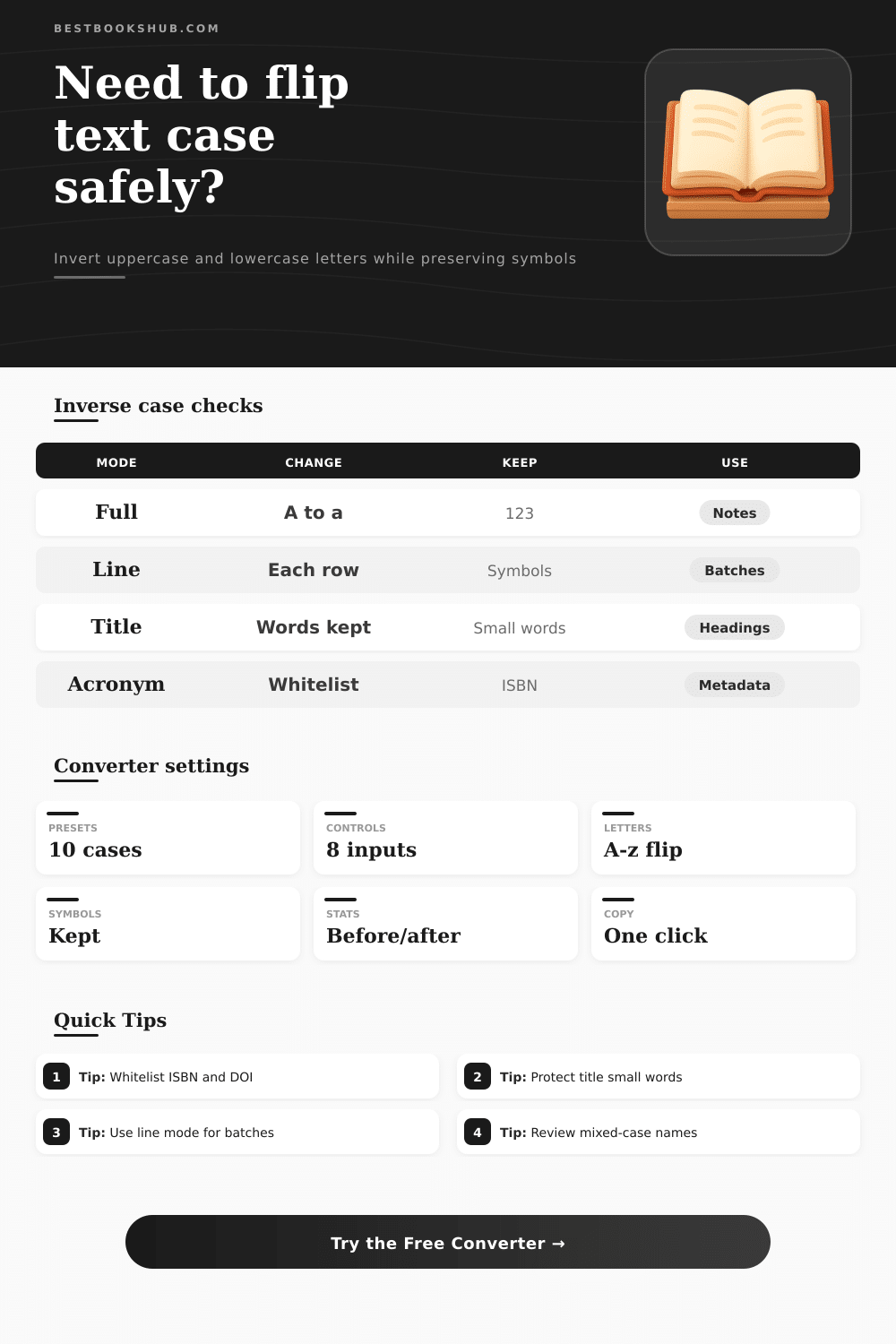
The core rule is simple: flip letters only. Use the controls to protect title words, preserve acronym whitelist terms, count symbols, and inspect line-level changes.
Use these tables to see exactly what inverse case changes, what stays untouched, and when protection should be enabled.
| Character type | Input sample | Output sample | Rule |
|---|---|---|---|
| Uppercase letters | BOOK | book | Flip to lower |
| Lowercase letters | notes | NOTES | Flip to upper |
| Mixed words | BookHub | bOOKhUB | Each letter flips |
| Nonletters | Vol. 2! | Vol. 2! | Preserved |
| Protection option | Best for | Example kept | Use when |
|---|---|---|---|
| Small words | Titles | of, and, the | Testing headings |
| First and last | Title anchors | Opening word | Need readability |
| Custom words | Names | BestBooksHub | Brand spelling matters |
| Acronym list | Metadata | ISBN, DOI | Codes must stay stable |
| Line mode | What it touches | Blank lines | Best use |
|---|---|---|---|
| One block | All text | Included | Paragraphs |
| Line by line | Every row | Included | Lists |
| Skip blanks | Filled rows | Ignored | Catalog batches |
| First line only | Opening row | Kept | Title plus copy |
| Count | Before means | After means | Why check it |
|---|---|---|---|
| Uppercase | Caps in source | Caps in result | Shows flip balance |
| Lowercase | Lower in source | Lower in result | Confirms inversion |
| Protected | Matched tokens | Kept tokens | Prevents name damage |
| Symbols | Nonletter chars | Same positions | Checks preservation |
If you recieve a block of text where the caps lock key was pressed incorrectly or turned on in error, an inverse case converter will change all the upper-case characters to lower-case (and vice versa) but leave the rest of your symbols, numbers and spaces intact for you to reuse. The tool performs a direct swap: it turns each capital letter into a lower-case one and each lower-case letter into a capital one. For example, pasting “hELLO wORLD!” instantly flips to “Hello World!” So it reverses the letter cases while retaining their order in the text.
To fix the formatting errors, you simply send the text through the converter. That’s why this is a fast solution to fixing capitalization mistakes, no need to mess around with the layout of the document. Proper capitalization for titles is something else that need protection settings.
Swap Uppercase and Lowercase Letters
Titles have little words such as “and”, “or,” or “of,” that may be found in the middle of titles which might not be correctly displayed if capitalized. There’s an option to protect those common words from being changed, or you can lock down the start and end words only. That allows the title to remain readable once inverted.
Proper nouns and brand names should also be protected. Add those terms to your whitelist and the converter will leave those alone. The proper spelling is respected; it wont change it.
The other catchwords that need to be whitelisted are acronyms which have a rigid set of capital letters. Examples: API, DOI, ISBN etc. These terms always has to retain their normal form. When you add the code to your protection list, the process bypasses it and thereby ensures proper formatting of citations without messing up your search filters.
Proper capitalization is important for metadata from an ebook store or library. The converter will not touch the terms listed here. For instance if you add the product codes to your whitelist, then a catalogue listing will appear as intended.
For those instances where you have a text block with more than one distinct item on each line, use the Line-by-line option. When you choose this, it processes the rows separately; for example if you’re using this for a list from a catalog, then rather than treating the whole block as a single conversion, it will treat each row as an individual entity and process them separately. If necessary, you can ignore any blank lines, or convert just the top line in each row.
This way the format stays clean but you dont run into alignment problems across your data. Its still applied only to the lines you’ve chosen though. The rest remains unchanged.
The converter gives a summary of what’s been changed. It reports on the numbers: the before and after counts for each letter, and how much they shifted from upper to lower or vice versa. If your doc had lots of caps, then there should be a big delta in the post-swap count.
The report also shows you how many digits and other symbols were left unchanged, and verifies that all non-letter characters was skipped by the tool. Look at the percentage of uppercase to get an idea of how visually heavy the new text is. If that’s too high, tweak the settings now rather than later.
Proper casing actualy shapes document hierarchy and tone. It matters in different fields, too: case sensitivity defines variables in programming languages, publishing style guides enforce strict title capitalization rules, and standard casing keeps casual writing readable. The converter doesnt invent a rule for you; instead, it shows a clear preview of how your original text will look after the swap, which lets you tweak the protection settings before you finalize it.
Tweak the whitelist until the result looks like the desired format. So it assists you in getting the document consistent with the proper style guide. Getting set up is key, especially if you want to avoid common pitfalls.
When I mix-case my brand names (with deliberate capitalization), this tool can change it! Similarly, long lines of symbols mess with the end stats. By adding custom words into the protected list, you avoid those problems.
For structure content, I go line-by-line. Before I copy-and-paste, I double-check the protected count. That keeps down the formatting issues.
Eventually it’s just another step in the editing workflow. Some text needs to be protected differently depending on what kind of project it is. For instance, novel writers want their chapter titles safe.
Software devs will protect technical docs. Students are creating citations which have their own set of rules. Changing the list of whitelisted words will yield a different result in the same piece of text.
Depending on your document type and your audience, you choose the right protection settings. Before even reading the actual contents, the formatting affects how a reader understands the message. Using the converter properly means ending up with a document in the desired format.
Lastly, using the proper protections on any given task makes this a trustworthy tool.